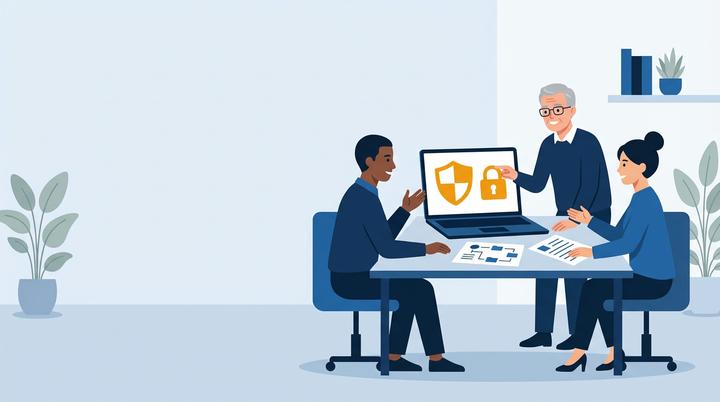
An administrator prepares a meeting with an external service provider. Her screen shows a customer list and an open mailbox. Visitors are waiting behind her; she is about to share a presentation. Screen workplace privacy is not just a question of using a privacy filter: she must decide what is visible, who can see it and which files remain accessible after the meeting. This guide helps leaders, HR and privacy teams rehearse those decisions with fictional data.
Screen workplace privacy: check the viewing angle
The administrator first views the workstation from the visitors' perspective. Can the customer list be read from the door or waiting area? Can she turn the display, change seats or postpone confidential work until after the visit? A privacy filter may help depending on position, but does not replace checking sightlines and workflow. Paper documents, conversations and a second monitor matter too. The article on mobile work extends this environmental perspective to work outside the office.
The manager must make sure staff can actually use a safer alternative. If the only available seat exposes sensitive information, a reminder about individual behaviour is not enough. Workspace design and visitor arrangements must fit together. In a pilot, a second person can check from normal visitor positions which fictional content is readable. Record the outcome without photographing real customer information and assign outstanding changes to an owner.
Lock before an interruption and clarify ownership
A phone call takes the administrator away from her desk. She locks the screen before leaving and handles papers under organisational rules. During training she demonstrates the prescribed locking method on a test device. IT separately checks the automatic lock and its actual configuration. A switched-off monitor is not necessarily a locked session. A colleague should not continue using her account merely because she is expected back shortly.
The team also discusses exceptions: what happens at a shared workstation or when locking interrupts an application? The operational team describes the need; IT and privacy assess an appropriate solution. Leaving an account permanently unlocked or sharing a password is not an improvised answer. An observable success is that the participant locks the session and knows where to report an obstacle.
Check the audience and content before sharing
Before the meeting, the administrator closes the mailbox and customer list or switches to a prepared workspace containing fictional information. She checks the participant list and meeting link, suppresses unnecessary notifications where technically possible and selects only the required window where feasible. A second person can use a test account to confirm what is actually visible. Her own display does not prove what others see. If the sharing mode is unclear, the presentation waits until it has been clarified.
Even a single window may contain confidential comments or the wrong tab. Before starting, the presenter identifies the content and purpose: which presentation does the provider actually need? During the presentation she watches the sharing indicator and stops broadcasting before moving to another task. If an unexpected notification displays personal data, she stops sharing and reports the observation through the internal process. She does not immediately promise that nobody saw it.
Limit file access after the meeting
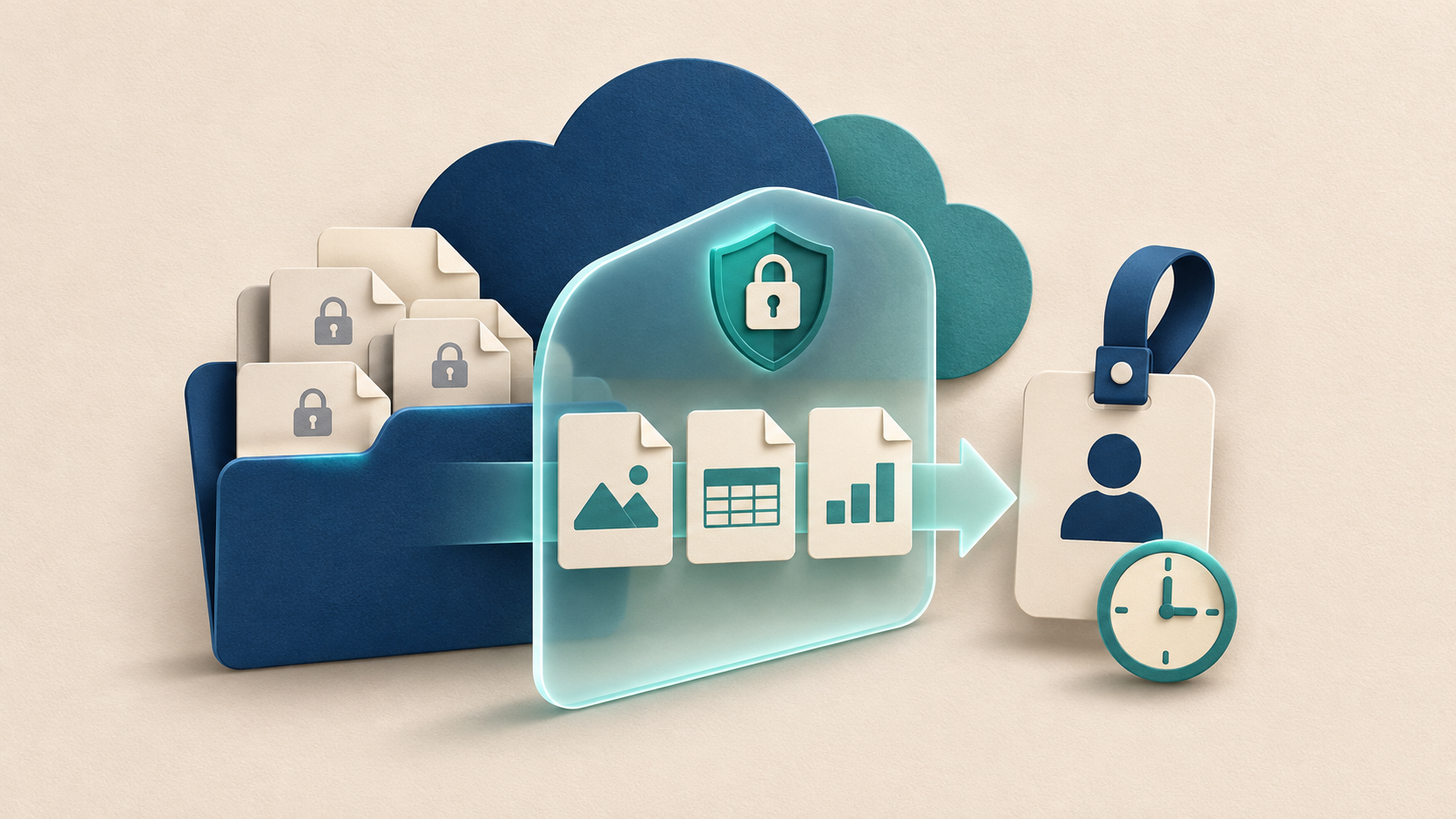
After the meeting, the provider requests the materials. The administrator first checks with the business owner which file and information are needed for the assignment. She verifies the recipient, viewing or editing permission, any agreed end and the channel used. The article on safe cloud sharing explains why a link and effective permissions are not the same thing. If in doubt, contact IT or the responsible privacy function before sharing.
An approved test account and fictional file show whether only the intended content is reachable. IT checks additional group or folder permissions where necessary. Revoking a link alone does not prove that already downloaded copies have disappeared. The owner therefore records which permission was ended and what was actually tested. The exercise avoids real external recipients and uncontrolled links.
Report a possible incident rather than deciding the outcome alone
Suppose a list was visible during sharing. The administrator stops the broadcast and promptly reports the facts through the organisational incident channel. She identifies the time, affected view, possible recipients and known actions. Unknown facts remain marked as open; she does not distribute screenshots containing real information as evidence. Responsible teams investigate scope and coordinate containment. The controller and relevant specialists assess whether a personal data breach occurred and whether further notification is necessary.
Article 32 GDPR requires appropriate technical and organisational measures to achieve security appropriate to the risk. Article 33 GDPR governs notification of certain breaches by the controller to the supervisory authority and provides a risk-based exception. The internal report in the scenario does not replace that assessment. The checklists and role assignments in this article are practical proposals, not a statutory template.
A worksheet for the next screen sharing session
A manager can add a short worksheet to the existing workflow. The presenter completes it before the meeting; the business owner resolves outstanding approvals and IT supports the test. The sheet contains no passwords or unnecessary personal information. It supports decisions, but does not prove that every unintended technical access has been excluded.
- Purpose and approved content: what is needed and what remains closed?
- Audience and location: who participates and who can view the workstation?
- Broadcast: which window is shared and which notifications are visible?
- File access: who receives which permissions, until when and who checks them?
- Interruption and incident: how is the screen locked and where is an incident reported?
- Test and open issues: what was checked from the recipient view and who resolves gaps?
A three-role simulation with four observable outcomes
For the exercise, three participants play the presenter, external test guest and observer. The facilitator provides a fictional customer list, a presentation and a test account. First the guest stands in a visitor position, then joins the test meeting. During the presentation the facilitator introduces a fictional unexpected notification. Finally, the guest asks for the file. At each step the presenter explains what to expose, what to stop and whom to contact if unsure.
Assess four outcomes: is the fictional list protected from the visitor position? Is the correct window shared without unnecessary notifications and stopped when the disruption occurs? Are recipient and permissions checked before file sharing? Can the participant locate the reporting route and distinguish observation from assumption? The observer also records process gaps such as an unknown contact or unavailable test method. The article on data protection scenarios helps adapt cases to different roles.
Put the results into everyday practice
After the pilot, the operational team, IT and privacy function prioritise open issues and assign each an owner. Repeat the step that failed, such as testing the guest view, rather than merely showing the slides again. Attendance and demonstrated action are different forms of evidence. Training should fit the software and reporting routes actually in use. ConformBase's Using Cloud and Collaboration Tools Safely offer can support the introduction, but does not replace the organisation's configuration and access decisions.
Official sources
ConformBase
Turn knowledge into training that works.
Bring compliance, privacy and security awareness into a format your people want to complete, with certificates and audit-ready evidence.
Start free trialAsk about custom courses →Won through a public tender: AI literacy for DIW Berlin, from kick‑off to sign‑off in one month.